
EA SPORTS F1® 22 - Iconography & Settings (2022)






EA SPORTS F1® 22 - Iconography & Settings (2022)
Role: UI Artist
Timeframe: 1 year
Software used: Adobe Illustrator & Photoshop (Concepts) , 3DS Max & In-House Editor/Tools (Implementation)
Platforms: PlayStation 4 · Xbox One · PlayStation 5 · Xbox Series X/S · PC (Steam, Origin/EA Desktop)
Project Status: Shipped
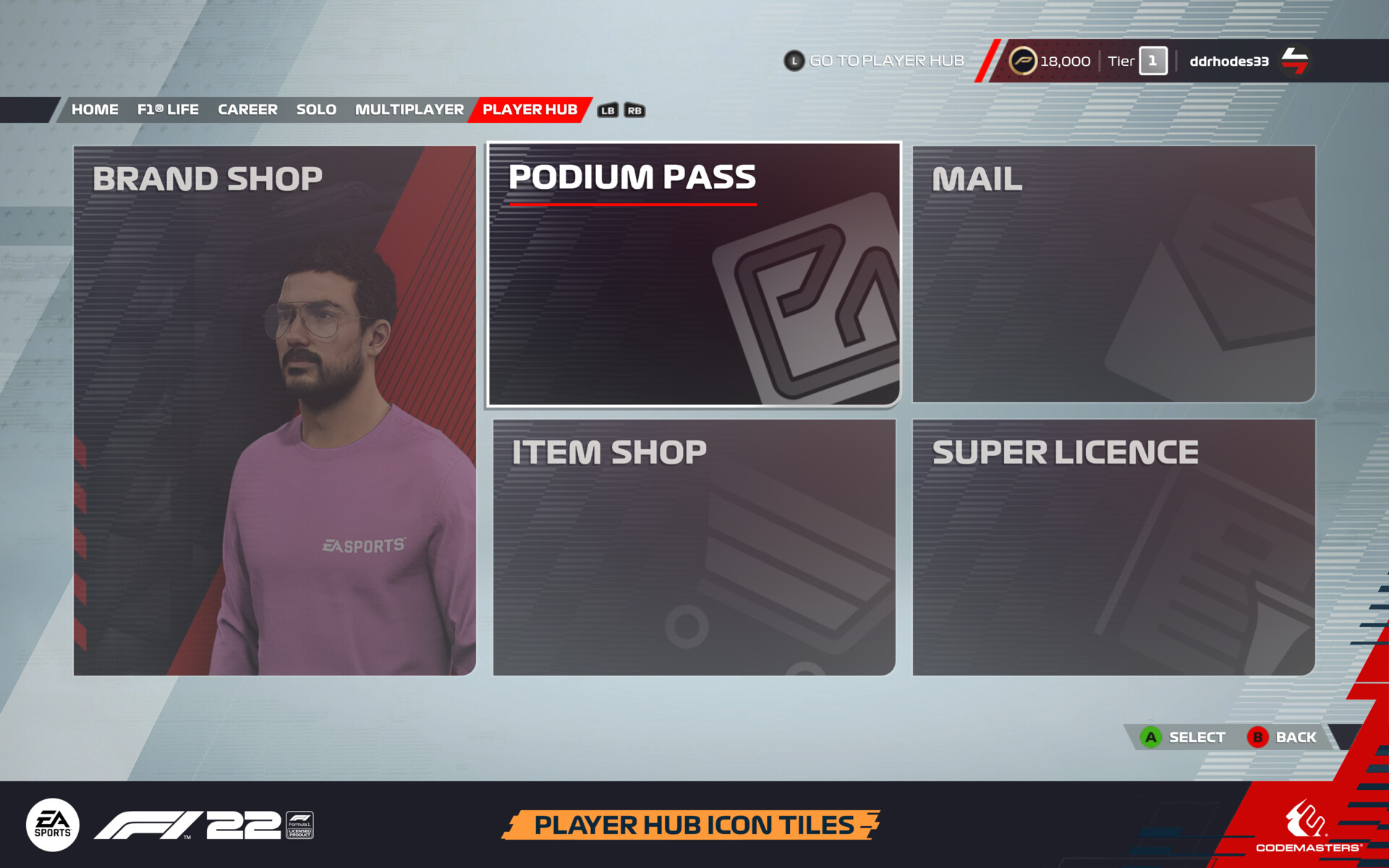
Something that shows up in many areas of the F1 22 game are interactable tiles. From the frontend to during gameplay to the PlayGo screen while downloading the game. Many of these feature iconography within them. This year I created the icons for these, along with the styling of them and how they display when interacted with or the mode/branding is changed. These tiles come in many different shapes and sizes, dotted throughout the game.
The icons used on tiles in the frontend of the game are simple, greyscale & build on the icon set that appeared in last years game. I wanted to build on the players understanding of what each icon meant that was already established with the iconography last year. Recreating many of these icons & changing ones I saw fit in order to create a consistent line weight and spacing across them all. In 2021's game I thought these were missing character. They were just small icons in the bottom right of the tile with nothing special about them. To change this up I enlarged my icons, improving the quick readabilty and differentiation between simular tiles. Adding gradients & fades to break up the flat colour. Giving them extra personality by slanting them all at a set angle and moving them them slightly 'off tile'. I would say now looking back that this step definitely works better for some icons more than others.
Something that was pushed when updating these icon tiles was to better separate them visually from the main image tiles. F1 2021 had a lot of grey tiles. There wasn't much colour usage, even with the image based tiles. Coming fresh to the F1 project off of DiRT 5 this is something I noticed straight away. This made the screen bland and harder to see which tile is currently highlighted. In F1 22 these image tiles tend to indicate primary actions or areas of the game we want the user to progress to; with the icon tiles being used for secondary actions. More colour was added to these tiles alongside the icons. Then an animated pattern was overlaid across the 2 types of tiles in order to add subtle motion to catch the eye when highlighted while establishing conisistancy across them and improving the use of the games branding.
On top of all these changes, this styling also needed to work in the settings/options area of the game. Here the icons also adopt the colour of the modes branding. Red for F1 and Blue for F2. When a tile is highlighted part of the icon is recoloured with the mode colour. My new styling for these icons was created from the start with these in mind. Naturally, the darker/grey parts of the icons (when unhighlighted) became the brand colour when highlighted. This meant the whole icon when highlighted became full colour and the brightest tile icon on screen making this stand out the most. Settings tiles also uses these same textures on the edit screen (displayed after selecting that tile). Due to how these icons are implemented and using a singlular texture across both screens, in order for these to work in 2 separate instances I needed to think of a slightly different way to creating these when compared to the rest of the game. On the tiles I wanted the icons to be slanted, masked 'off tile' and change colour based on interaction matching the frontend. On the edit screen they're upright, full colour and fully visible. I managed to work around this issue & match the styling of the tiles to the rest of the game by replicating the masks & steps I used to create the icons in Photoshop. Recreating these steps using in-house tools & techniques to implement this stuff into the game in an alternate way.
One last 'bonus' area of the game I updated iconography in is during gameplay. The settings screen is also available in-game so I needed to check that the screen worked well with a different background. But during this time I also had the chance to update the networking icons along with the panel they're show on. Originally, these icons used a different tone of orange to the text used in-game and the line weights also differed per icon. Now fixed, each element of this explanation panel better matches each other to improve the visuals in this minor part of the game reinforcing this colour and icons relate to network issues.
More Iconography For This Project:
https://www.artstation.com/artwork/14GeQ3